The best settings for PPSSPP Gold depend on your device specs and the game you’re playing, but optimizing graphics, performance, and system features can dramatically improve gameplay.
If you’re a fan of retro or handheld gaming, chances are you’ve heard of PPSSPP Gold — the premium version of the most popular PSP emulator. While the free version is powerful on its own, PPSSPP Gold brings enhanced features and stability that make it a go-to for true gaming enthusiasts. But, to get buttery smooth performance and clear visuals, you need the right settings — and that’s where this guide comes in.
But to truly enjoy games at their best, you need the right settings—balancing speed, graphics, and compatibility.
Whether you’re using a high-end Android device, a mid-range phone, or even a PC, this guide will help you tweak PPSSPP Gold for maximum smoothness and eye-catching visuals. We’ll cover everything from graphics and rendering settings to audio and system optimizations, ensuring your games run flawlessly.
- Understanding PPSSPP Gold Emulator
- Best PPSSPP FPS settings for Android 2025
- 1. General Settings for PPSSPP Gold
- 2. Best Graphics & Rendering Settings
- 3. Performance & Speed Hacks
- 4. Audio & Control Settings
- 5. Game-Specific Tweaks
- Best Graphics Settings for PPSSPP Gold
- Best Performance Settings for Low-End Devices
- Best Settings for High-End Devices
- Audio Settings Explained
- Control Configuration Tips
- Using Cheats and Save States Properly
- Network Settings for Multiplayer Play
- Troubleshooting Common Issues
- Tips to Improve Battery Efficiency
- Devices That Support PPSSPP Gold
- Final Thoughts & Pro Tips
Understanding PPSSPP Gold Emulator
PPSSPP Gold is a paid version of the PPSSPP emulator, designed to play PSP games on your mobile and PC. It supports HD graphics, texture filtering, save states, cheat codes, and much more. One big benefit? It actively supports the development team — so you get a more stable experience and help improve future updates.
Unlike the standard version, PPSSPP Gold is ad-free and offers better long-term performance. It’s built for both casual players and hardcore gamers who want the most out of their emulated titles.
Best PPSSPP FPS settings for Android 2025
1. General Settings for PPSSPP Gold
Before diving into advanced tweaks, let’s start with the basic settings that affect overall performance. Under Settings > System, make sure:
- Fast Memory (Unstable) – Disable this unless you’re facing slowdowns (can cause crashes).
- IO Timing Method – Set to Fast for better speed, but switch to Host if games have timing issues.
- Cheats – Keep disabled unless you’re using cheat codes.
In Settings > Graphics, set Backend to Vulkan (best for modern devices) or OpenGL if Vulkan causes glitches. Buffered Rendering should be On for most games, but some 2D titles run better with it Off.
2. Best Graphics & Rendering Settings
The visual quality of your games depends on these settings. Here’s how to optimize them:
Resolution & Scaling
- Internal Resolution – Set this 2x or 3x PSP’s native resolution (480×272) for sharper graphics. On weaker devices, stick to 1x for speed.
- Display Resolution – Match your screen’s aspect ratio (Stretch to display or 4:3/16:9 depending on the game).
Texture & Filtering
- Texture Scaling – Off (reduces lag, but x2 can improve textures if your device is powerful).
- Anisotropic Filtering – 4x or 8x for smoother textures (disable if performance drops).
- Texture Filtering – Auto or Linear for best results.
Post-Processing & Effects
- FXAA – Enable for slight anti-aliasing (minimal performance hit).
- MSAA – Keep Off unless you have a high-end GPU (drains performance).
3. Performance & Speed Hacks
If your game is lagging or stuttering, these speed hacks can help:
- Frame Skipping – Set to Off for smooth gameplay, but enable Auto if FPS drops.
- CPU Clock Speed – Increase to 333 MHz (default PSP speed) or lower to 222 MHz if games run too fast.
- Vertex Cache – Enable for a speed boost (may cause minor glitches in rare games).
- Disable Slower Effects – Turn off Hardware Transform, Software Skinning, and Vertex Cache only if needed.
4. Audio & Control Settings
Best Audio Settings
- Audio Latency – Low (reduces delay) or Medium (if crackling occurs).
- Audio Backend – Use Cubeb (best balance) or OpenSL ES if Cubeb has issues.
Controller & Touch Controls
- On-Screen Controls – Adjust opacity and layout under Controls > Touch Control Settings.
- External Controllers – Enable XInput/DInput for gamepads (PS4, Xbox, etc.).
5. Game-Specific Tweaks
Some games need special settings:
- God of War: Chains of Olympus – Enable Buffer Rendering and set Rendering Mode to Skip Buffer Effects.
- Monster Hunter Portable 3rd – Use Vulkan backend for fewer glitches.
- GTA: Vice City Stories – Lower Internal Resolution if textures flicker.
Best Graphics Settings for PPSSPP Gold
- Rendering Mode: Use Buffered Rendering for the best compatibility and visuals. For older devices, try Non-Buffered to boost speed.
- Frameskipping: Set to 1 or 2 if you’re experiencing lag. Leave it at 0 for smooth gameplay.
- Texture Scaling: Set to Auto or x2 for mid-range devices. Avoid x5 unless you’re using a flagship phone.
- Texture Filtering: Use Linear on FMV and Auto to smooth textures without sacrificing speed.
- Post-processing Shader: Try FXAA or Natural Colors for better visuals without a heavy load.
- VSync: Turn ON to prevent screen tearing if your device handles it well.
Best Performance Settings for Low-End Devices
- Use Non-Buffered Rendering
- Set Resolution to 1x PSP
- Turn Off Texture Scaling
- Enable Frameskip
- Disable Hardware Transform
- Turn Off Mipmapping
These tweaks cut the heavy lifting on your CPU and GPU, helping older phones run games like Dragon Ball Z or WWE SmackDown smoothly.
Best Settings for High-End Devices
- Buffered Rendering with 3x or 5x Rendering Resolution
- Texture Scaling at x4 or x5
- Post-processing shaders enabled (e.g., FXAA, Bloom)
- Enable Anisotropic Filtering
- Enable Hardware Transform, Vertex Cache, and Lazy Texture Caching
These options take advantage of your device’s horsepower to give you crisp, near-HD quality graphics on PSP games.
Audio Settings Explained
- Audio Latency: Try Low or Medium. Avoid “High” unless you’re getting popping sounds.
- Audio Backend: Use OpenSL ES on Android. Use SDL Audio on PC for stability.
- Audio Cracks: Lower the latency and try disabling TimeStretching Audio to fix this.
Control Configuration Tips
- Customize the On-Screen Layout via Settings > Controls > Control Mapping.
- Connect a Bluetooth Gamepad for a console-like experience.
- Adjust Deadzone and Sensitivity for analog stick responsiveness.
Using Cheats and Save States Properly
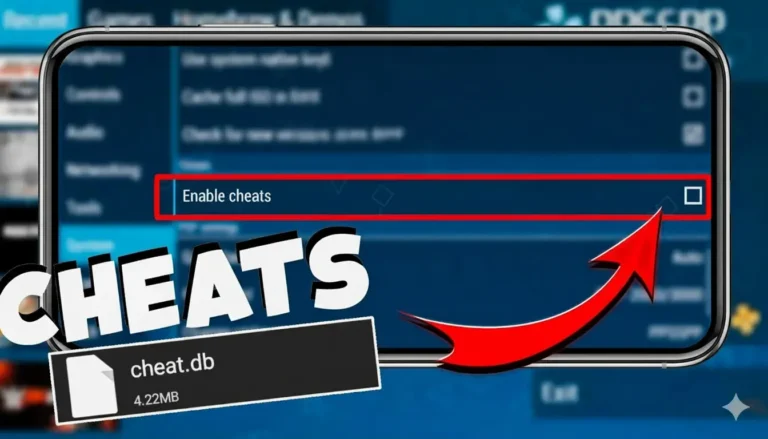
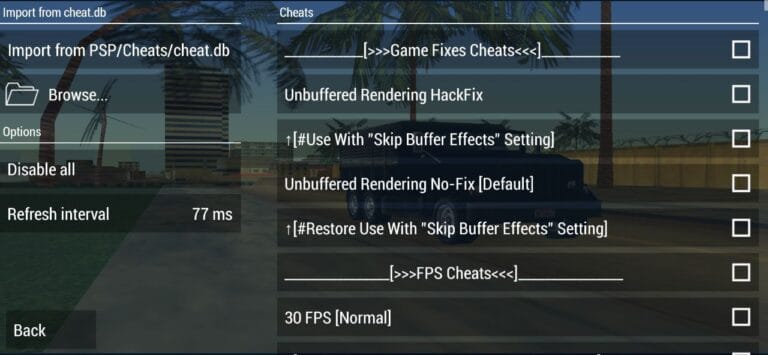
- Enable cheats from System > Enable Cheats
- Download cheat.db files and place them in the PSP/Cheats folder
- Save States allow quick resume — but don’t over-rely on them, as they can sometimes cause bugs.
Network Settings for Multiplayer Play
- Enable WLAN and configure Adhoc Server IP (e.g.,
localhost) - Use PPSSPP Adhoc Server on PC for local multiplayer.
- Some games support online via ZeroTier or VPNs.
Troubleshooting Common Issues
- Black Screen: Change rendering backend (OpenGL to Vulkan or vice versa)
- Laggy Gameplay: Lower resolution and disable upscale
- Sound Delay: Reduce latency or switch audio backend
Tips to Improve Battery Efficiency
- Enable Battery Saver Mode
- Lower rendering resolution
- Disable Post-Processing Shaders
- Play in Portrait Mode if possible to save screen power
Devices That Support PPSSPP Gold
Android
Most mid-to-high-end Android devices work well with PPSSPP Gold. Devices with Snapdragon chipsets and decent GPUs (Adreno) show the best results.
iOS
You can run PPSSPP Gold on jailbroken iOS devices through AltStore or third-party installers. Non-jailbroken users might face restrictions.
PC (Windows, macOS, Linux)
Desktop users enjoy the best compatibility and speed, thanks to more powerful CPUs and GPUs. Windows users especially benefit from Vulkan and DirectX support.
Final Thoughts & Pro Tips
- Save States – Use them frequently (some games may crash).
- Update PPSSPP Gold – Always use the latest version for bug fixes.
- Experiment – If a game acts weird, tweak settings one by one.
By following these best settings for PPSSPP Gold, you’ll enjoy buttery-smooth gameplay with stunning visuals. Whether you’re reliving classics or discovering hidden gems, these tweaks will make your emulation experience seamless and immersive.
![How to Activate Cheats in PPSSPP Gold? [Complete Guide]](https://ppssppapk.com/wp-content/uploads/2025/08/zhFMRn8ADl4-HD-768x432.jpg)